
How to Set Up IPTV Smarters Pro with Xtream Codes
The practical, in-app steps for connecting IPTV Smarters Pro with an Xtream Codes login, beyond the general overview — field by field, screen by screen.
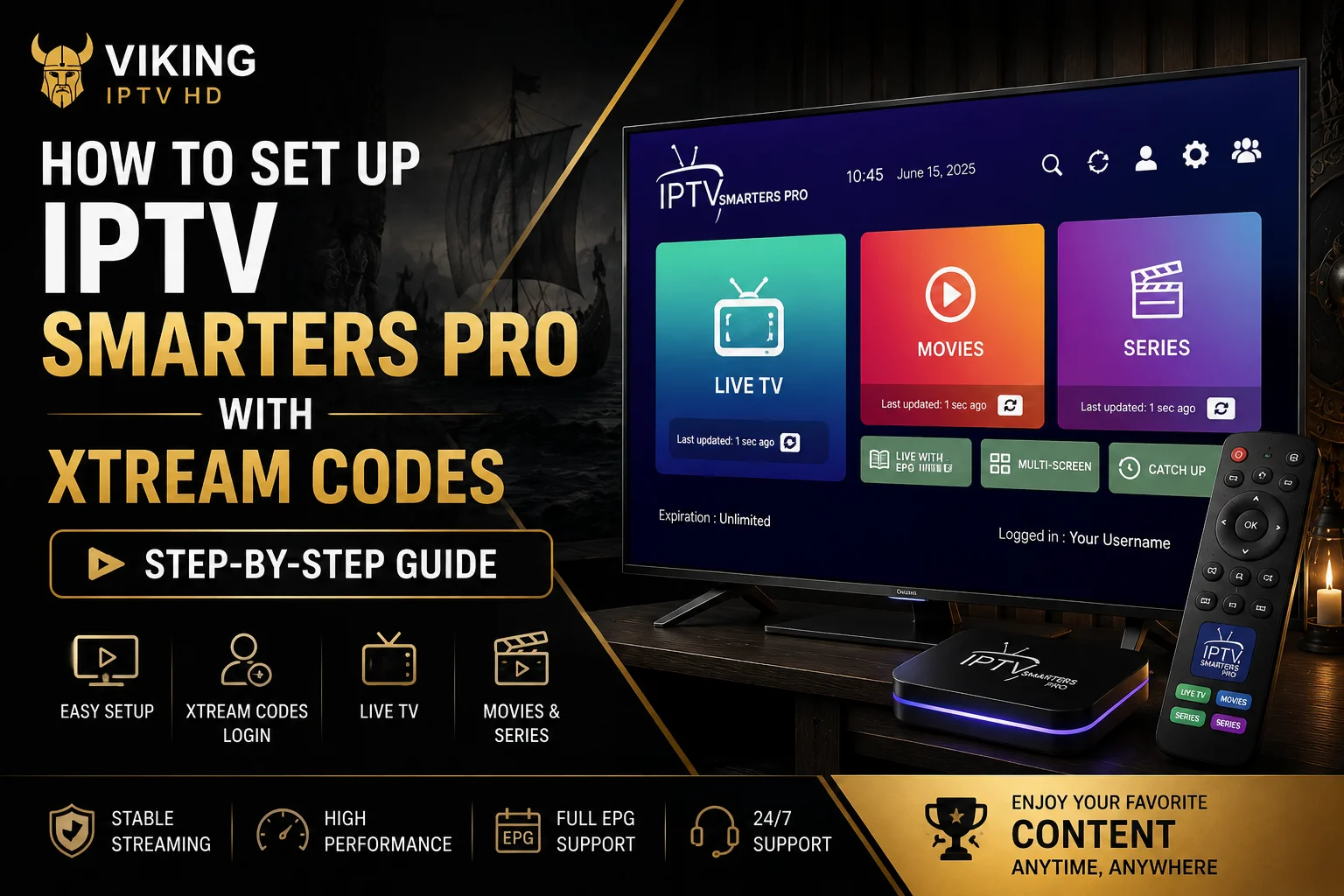
Our IPTV Smarters Pro overview explains what the app is and how it generally works, and our Xtream Codes guide explains the login format itself. This article bridges the two — the actual in-app screens and fields you'll fill in when connecting Smarters Pro specifically with an Xtream Codes login, plus the playback settings and errors that come up once you're set up.
What You Need
- IPTV Smarters Pro installed on your device
- Your Xtream Codes login: server (portal) URL, username and password from Viking IPTV HD
- A stable internet connection
What Xtream Codes Are, Briefly
Xtream Codes is a login format, not an app — a way of authenticating to a subscription using a server address plus a username and password, similar to logging into any other online account. See our full Xtream Codes explainer if you want the background; this article assumes you already have your three credentials in hand and focuses purely on entering them into Smarters Pro correctly.
Open IPTV Smarters Pro
On first launch, Smarters Pro presents a login screen with a choice between connection types — typically labeled something like "Login with Xtream Codes API" and "Load your playlist or file (M3U URL)." Select the Xtream Codes option; this article covers that path specifically.
Add Your Login Details
- Server URL / Portal URL — enter this exactly as provided, including "http://" or "https://" if your details include it. Missing or extra characters here are the single most common cause of a rejected login.
- Username — case-sensitive; enter it exactly as given.
- Password — also case-sensitive; if you're copying and pasting, check for accidental trailing spaces.
- You'll usually also be asked to name the connection (a label for your own reference, such as "Viking IPTV") — this is cosmetic and doesn't affect the login itself.
Load Your Content
After submitting your details, Smarters Pro validates them against the server and, once accepted, downloads your channel list, VOD library and series library (where your subscription includes them). This can take anywhere from a few seconds to a couple of minutes on a first load, depending on the size of the content library and your connection speed — a blank-looking home screen for the first few moments is normal, not a fault.
Configure EPG
Smarters Pro typically loads EPG data automatically as part of the Xtream Codes connection, since program schedule information is usually bundled with the same login. If the guide grid appears empty, open the app's settings menu and look for an EPG or "Update Data" option to force a reload — this is a separate action from restarting the app. If a reload doesn't fix it, our dedicated EPG not updating guide walks through the full diagnostic sequence.
Playback Settings
Inside Smarters Pro's settings, you'll find options that affect playback smoothness rather than the connection itself — buffer size and the choice between hardware and software video decoding are the two most relevant. Increasing the buffer size slightly can help with intermittent stutter at the cost of a longer delay when switching channels; hardware decoding is generally preferable when your device supports it, since it offloads video processing from the CPU.
Common Errors
- "Connection failed" or "Unable to connect" — recheck the server URL for typos, including the http/https prefix.
- "Invalid username or password" — re-enter both fields manually rather than relying on autofill, which occasionally inserts extra characters.
- Channels load but playback fails — this points to a playback or network issue rather than a login problem; see our troubleshooting guide.
- App accepts login but shows no content — wait a minute for the initial download to finish before assuming the account is empty.
Troubleshooting
If login continues to fail after carefully re-entering all three fields, the most likely causes are a temporary server-side issue or an account that hasn't been activated yet — in either case, contacting support directly is more productive than repeatedly re-entering the same details. For playback problems after a successful login, our buffering guide covers the network and device checks worth working through.
FAQ
Why does Smarters Pro reject my Xtream Codes login on the first try?
A mistyped server URL, username or password is by far the most common cause — including a missing or extra http/https prefix. Re-entering all three fields manually usually resolves it.
Does IPTV Smarters Pro load EPG automatically with Xtream Codes?
Usually, yes — EPG data is typically bundled with the same Xtream Codes connection. If the guide grid appears empty, use the app's EPG refresh option in settings rather than reinstalling.
Should I use hardware or software decoding in Smarters Pro?
Hardware decoding is generally the better choice when your device supports it, since it offloads video processing from the CPU. Software decoding is a fallback if you notice compatibility issues on older hardware.
Ready to get started?
See what's included with a subscription, or go straight to plans and pricing.