
How to Set Up IPTV on Android TV
The full setup workflow for Android TV, from choosing between IPTV Smarters Pro and TiviMate to getting your first stream playing reliably.
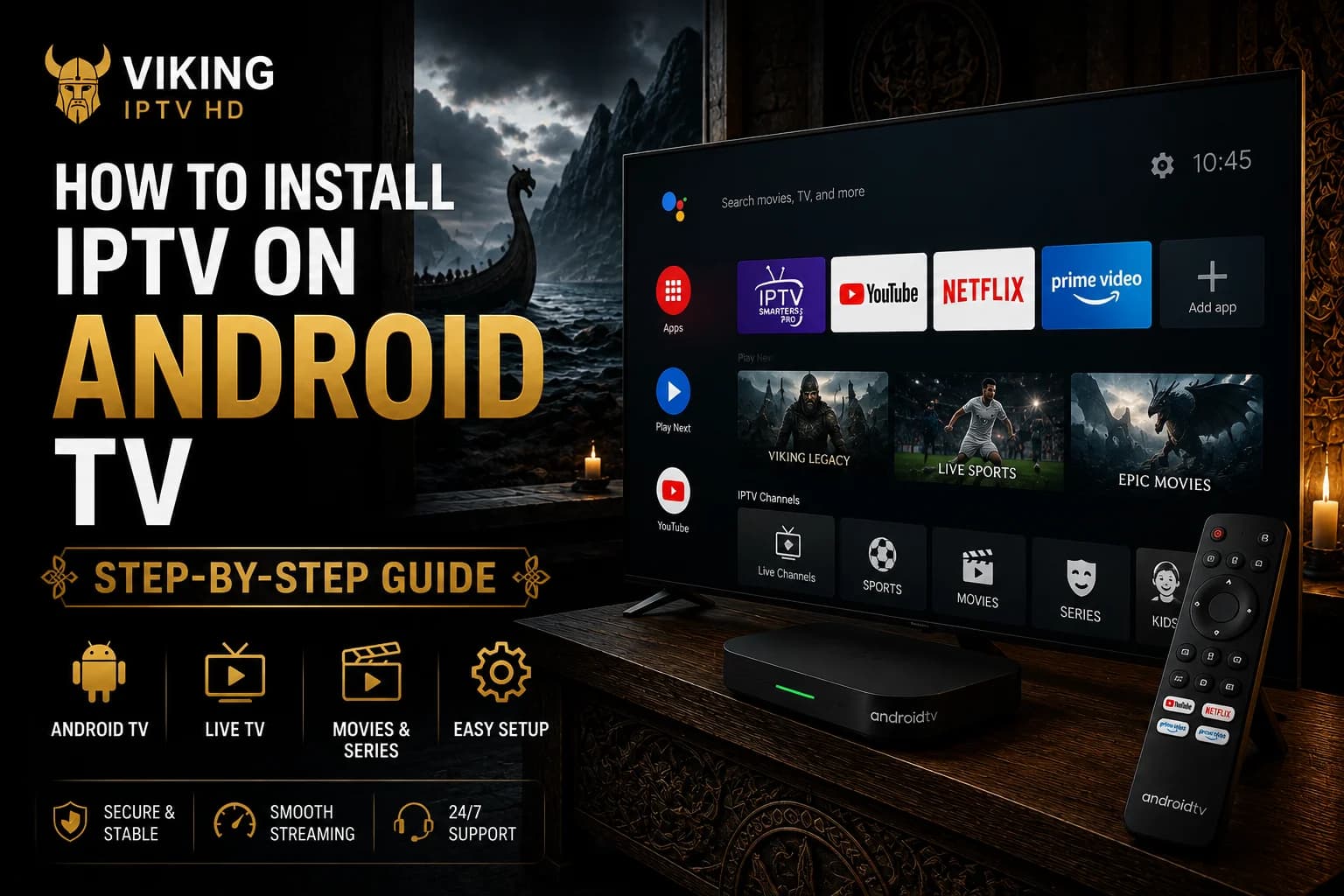
Android TV's open app ecosystem makes it one of the more flexible platforms for IPTV, which our Android TV device page covers at a glance. This article goes further into the practical decisions you'll actually face during setup: which player to install, how to fill in your connection details without mistakes, and what to check first when something doesn't work.
What You Need
- An Android TV or Google TV device, or an Android TV-branded Smart TV, signed into a Google account
- A stable Wi-Fi or wired ethernet connection
- Your Viking IPTV HD server URL, username and password, or your M3U link
Choosing Between Player Apps
IPTV Smarters Pro and TiviMate are the two most commonly used players on Android TV, and both support Xtream Codes and M3U connections. The practical difference is mostly in layout: Smarters Pro presents a more conventional grid-and-list interface, while TiviMate is built around a heavily customizable program guide that suits people who spend a lot of time browsing live TV specifically.
Neither is objectively better — pick based on which layout you find easier to navigate with a remote. If you're not sure, our best IPTV players comparison breaks down more of the differences.
Installing the Player
Open the Google Play Store from your Android TV's home screen, search for your chosen player app by name, select it, and choose Install. This is generally the most straightforward installation step across any IPTV setup, since Android TV's Play Store access is broad compared to Tizen or webOS.
If your preferred app isn't listed in the Play Store for your region, sideloading an APK from the developer's own official source is a documented alternative on Android TV — similar in principle to the Firestick sideloading process, though the exact steps differ slightly by launcher.
Adding Your IPTV Details
Open the app and select Xtream Codes or M3U as your connection type, based on what your Viking IPTV HD access details specify. For Xtream Codes, enter the server URL, username and password into their respective fields — using the on-screen keyboard with your remote's D-pad, which is generally accurate as long as you go one character at a time. For M3U, paste in the playlist URL as a single field instead.
If your first login attempt fails, don't assume something's broken — recheck each field against the original details from your subscription. See our Xtream Codes and M3U playlist guides for what each field is actually for, or our dedicated walkthroughs for Smarters Pro + Xtream Codes and TiviMate + M3U if you're using either of those.
Loading Channels
Once your details are accepted, the app fetches your channel list and VOD library. This is where connection speed matters most — a slow or congested network can make this step take noticeably longer, so give it a minute or two on a first setup before assuming there's a problem.
Configuring EPG
Both Smarters Pro and TiviMate display an EPG once connected, usually loading it automatically alongside your channel list. If the guide grid is empty right after setup, check the app's settings for a manual EPG reload — this is a separate action from refreshing the channel list itself in most players.
Playback Troubleshooting
- Stuttering on lower-powered Android TV boxes — older or budget hardware can struggle with higher-bitrate streams; closing background apps can help.
- Buffering during peak hours — usually network congestion rather than a device issue; see our buffering guide for a full checklist.
- App crashes on launch — try clearing the app's cache from Android TV's app settings before reinstalling entirely.
- Login works but no EPG — reload EPG data from within the app rather than re-entering your credentials.
Network Considerations
Android TV boxes vary widely in Wi-Fi hardware quality — cheaper models are more prone to dropped signal than premium devices or Android TV-branded TVs with built-in antennas. Where practical, a wired ethernet connection (directly, or via a USB-to-ethernet adapter on boxes without a built-in port) removes this variable entirely and is the single most effective change for consistent playback.
FAQ
Should I use IPTV Smarters Pro or TiviMate on Android TV?
Both work well and support the same connection methods. Smarters Pro has a more conventional layout; TiviMate is built around a more customizable program guide. Choice comes down to preference, not compatibility.
What if my player app isn't in the Google Play Store?
Sideloading an APK from the app's official developer source is a documented alternative on Android TV. Availability in the Play Store can vary by region.
Why does playback stutter on my Android TV box but not on my phone?
Lower-powered or budget Android TV hardware can struggle with higher-bitrate streams even on the same network a phone handles fine. Closing background apps and checking for firmware updates are the first things worth trying.
Ready to get started?
See what's included with a subscription, or go straight to plans and pricing.