
How to Set Up IPTV on Fire TV Stick
A start-to-finish walkthrough for getting IPTV running on a Fire TV Stick, including the Downloader-based install process and what to do when playback stutters.
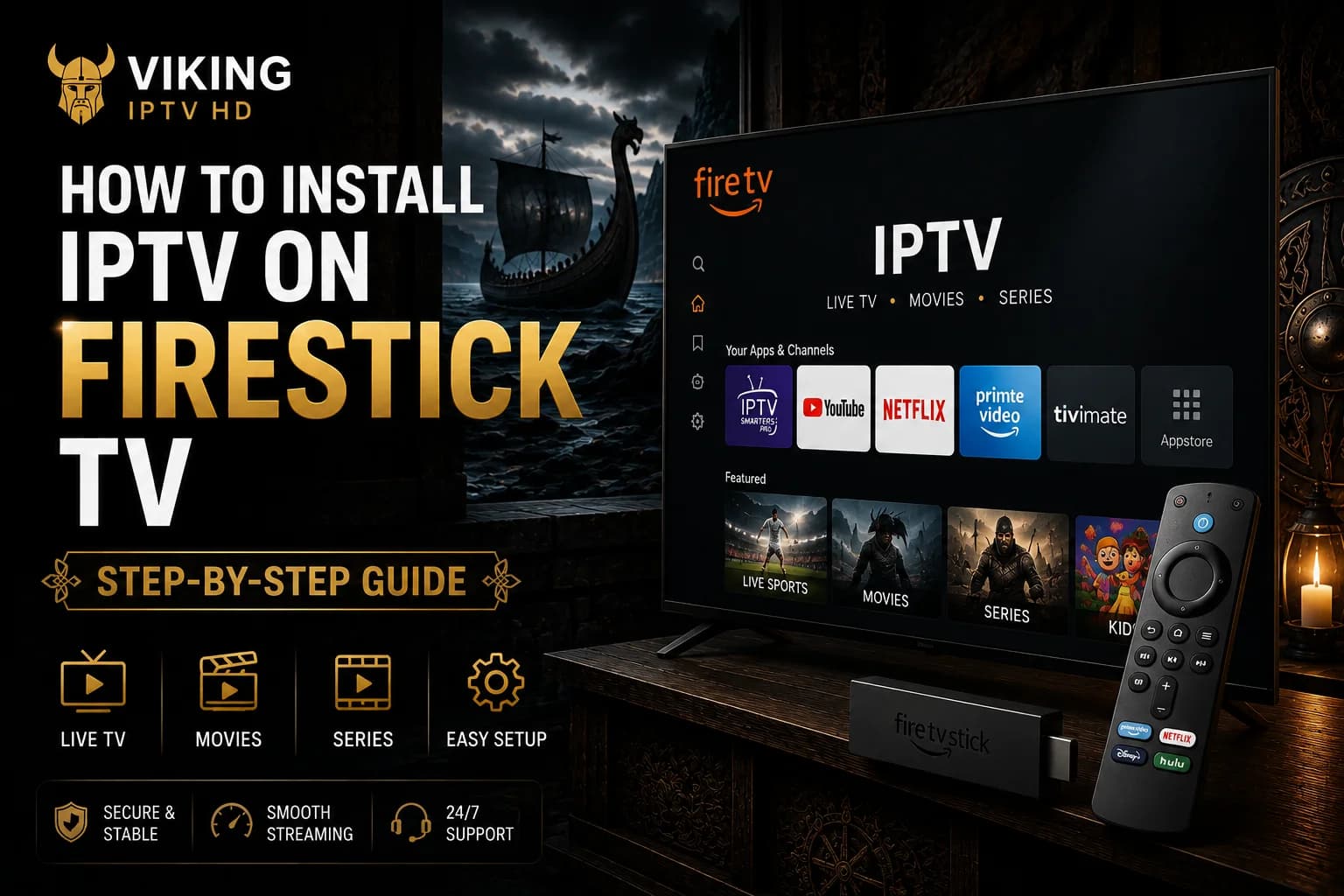
Our Firestick device page covers the overall process and what you'll need. This article walks through it in more detail end to end — from preparing the device, through the actual Downloader install workflow, to getting your player app configured and troubleshooting the issues that come up most. Everything here uses legitimate application installation and standard IPTV player configuration — no platform security bypasses are involved.
Preparing the Fire TV Stick
Before installing anything, go to Settings > My Fire TV > Developer Options and turn on "Apps from Unknown Sources." This setting is what allows Fire OS to install applications from outside the Amazon Appstore, which is necessary because most IPTV player apps aren't distributed there.
It's worth confirming your Fire TV Stick is connected to Wi-Fi (or ethernet, via a compatible adapter) and signed into an Amazon account before you continue — both are required for the Downloader app itself to install from the Appstore in the first step below.
Finding and Installing a Suitable Player
Open the Amazon Appstore on your Fire TV Stick and search for "Downloader" — a legitimate, widely used utility for downloading and installing APK files directly on Fire TV. Install it like any normal Appstore app.
Open Downloader and enter the web address for your chosen player app's official APK download page — for example, the developer's own site for IPTV Smarters Pro or TiviMate. Downloader will fetch the file and prompt you to install it; accept the installation prompt when it appears. This entire process uses Fire OS's standard, documented app-installation mechanism — the same one Amazon itself enables through the Developer Options setting.
Login/Playlist Methods
Open your newly installed player app and select your connection type. For Xtream Codes, you'll fill in a server URL, username and password — three separate fields, entered exactly as given in your Viking IPTV HD access details. For M3U, you'll paste a single playlist URL instead. Our Xtream Codes and M3U playlist guides explain what each field actually does if either is unfamiliar.
Fire TV's remote uses standard D-pad navigation for the on-screen keyboard, which is generally reliable — but a single mistyped character is still the most common reason a first connection attempt gets rejected, so it's worth reviewing each field before submitting. Our dedicated walkthroughs for Smarters Pro + Xtream Codes and TiviMate + M3U cover this step screen by screen for each app.
EPG Setup
Once connected, most players load the EPG automatically alongside your channel list. If the guide grid looks empty immediately after setup, check your player app's settings for a manual EPG refresh option before assuming something's gone wrong — guide data can take slightly longer to populate than the channel list itself.
Playback Troubleshooting
- App won't install — double-check that "Apps from Unknown Sources" is specifically enabled for Downloader in Developer Options.
- Playback stops after the Fire TV Stick goes to sleep — reopen the player app; some Fire OS versions close background apps aggressively to save memory.
- Buffering during playback — usually a Wi-Fi signal or network congestion issue rather than the app itself; see our buffering guide for a full checklist.
- Remote navigation feels unfamiliar in the app — most IPTV players are built for D-pad navigation rather than touch or gesture control, so this is expected behavior, not a bug.
Network Stability
Fire TV Sticks rely entirely on Wi-Fi unless you're using a separate ethernet adapter, which makes signal strength a bigger factor than on devices with a wired option built in. Keeping the Stick within good range of your router, closing other bandwidth-heavy apps before streaming, and restarting the device occasionally to clear background processes all noticeably help with playback consistency.
FAQ
Is using Downloader to install an IPTV app safe?
Downloader itself is a legitimate Amazon Appstore utility used specifically for installing APK files from a source you specify. Always point it to the developer's own official download page for the app you're installing.
Why does my Fire TV Stick stop playback when the screen turns off?
Some Fire OS versions close background apps aggressively to manage limited memory. Reopening the player app after the Stick wakes up is the standard fix, rather than a sign of a deeper problem.
Do I need Ethernet for a Fire TV Stick, or is Wi-Fi enough?
Wi-Fi is enough for most setups if the signal is strong where the Stick is located. An ethernet adapter removes Wi-Fi variability entirely and is worth considering if buffering persists after other troubleshooting.
Ready to get started?
See what's included with a subscription, or go straight to plans and pricing.